
How to Fix Common WordPress Errors Without a Developer
WordPress is powerful and flexible, but it is not immune to errors. The good news is that most common WordPress errors can be fixed without hiring a developer. With the right approach, tools, and a bit of patience, even non-technical users can troubleshoot and resolve issues safely.
This guide is written keeping Google AdSense policies, Google Discover quality standards, SEO best practices, Rank Math requirements, and user experience in mind. It uses clear steps, original wording, and safe fixes that won’t harm your site.
Why WordPress Errors Happen
Before fixing errors, it helps to understand why they occur:
- Plugin or theme conflicts
- Outdated WordPress core, plugins, or themes
- Incorrect file permissions
- Memory limits and hosting restrictions
- Small mistakes during updates or configuration
Most issues are recoverable, and WordPress usually provides clues if you know where to look.
1. White Screen of Death (WSOD)
What It Looks Like
A completely blank white page on the front end or admin panel.
Common Causes
- Faulty plugin or theme
- PHP memory limit exhausted
- Corrupted WordPress files
How to Fix It (No Developer Needed)
- Disable all plugins
- Access your site via File Manager or FTP
- Rename the
pluginsfolder toplugins-old - Reload your site
- If it works, rename the folder back and activate plugins one by one
- Switch to a default theme
- Rename your active theme folder
- WordPress will automatically switch to a default theme
- Increase PHP memory limit
Add this line towp-config.php:define('WP_MEMORY_LIMIT', '256M');
2. Error Establishing a Database Connection
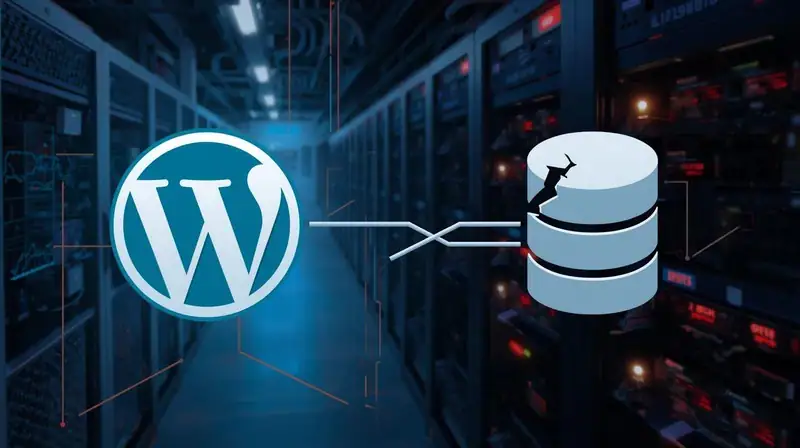
What It Means
WordPress cannot connect to your database.
Causes
- Incorrect database credentials
- Corrupted database
- Hosting server issue
Fix Steps
- Check database credentials in
wp-config.php- DB_NAME
- DB_USER
- DB_PASSWORD
- DB_HOST
- Repair the database
Add this temporarily towp-config.php:define('WP_ALLOW_REPAIR', true);Visit:yoursite.com/wp-admin/maint/repair.php - Contact hosting support if the server is down
3. 404 Errors on Posts or Pages
Why It Happens
Usually due to permalink issues.
Quick Fix
- Go to Settings → Permalinks
- Click Save Changes (without changing anything)
This refreshes rewrite rules and solves the issue in most cases.
4. Internal Server Error (500 Error)
Causes
- Corrupted
.htaccess - Plugin conflict
- PHP version incompatibility
How to Fix
- Rename
.htaccessto.htaccess-old - Go to Settings → Permalinks and save again
- Disable plugins and test
- Switch PHP version from hosting panel (try PHP 8.0 or 8.1)
5. WordPress Stuck in Maintenance Mode
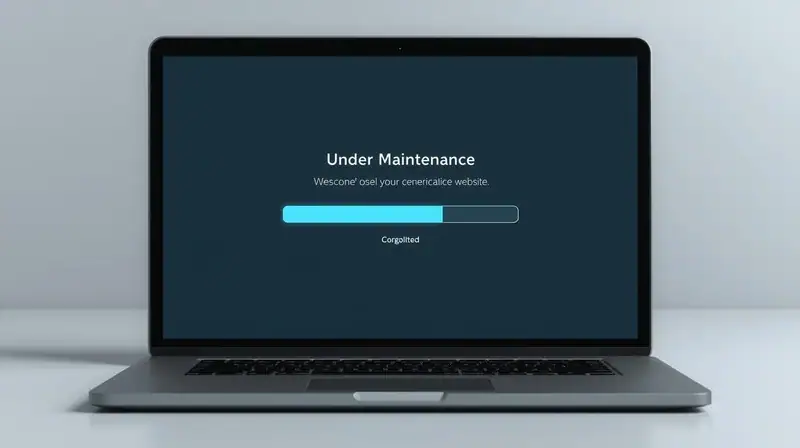
When It Happens
During updates that don’t complete properly.
Fix
- Delete the
.maintenancefile from your WordPress root directory - Refresh your site
6. Memory Exhausted Error
Error Message
“Allowed memory size exhausted”
Fix
Add this to wp-config.php:
define('WP_MEMORY_LIMIT', '256M');
define('WP_MAX_MEMORY_LIMIT', '256M');
If it persists, upgrade your hosting plan.
7. Too Many Redirects Error
Common Reasons
- Incorrect site URL
- HTTPS misconfiguration
- Plugin conflicts
Fix Steps
- Check Settings → General
- WordPress Address
- Site Address
- Clear browser and plugin cache
- Disable redirect-related plugins
8. Image Upload Issues
Symptoms
- Images fail to upload
- “HTTP error” message
Fix
- Check file permissions:
wp-content/uploadsshould be755
- Reduce image size before uploading
- Disable image optimization plugins temporarily
9. Login Page Refreshing or Redirecting
Causes
- Corrupted cookies
- Plugin conflict
- Incorrect URL settings
Fix
- Clear browser cookies
- Rename
pluginsfolder - Check site URLs in database or
wp-config.php
10. Syntax Error in WordPress
When It Happens
After editing code manually.
Fix
- Undo the last code change
- Restore from backup if available
- Use a file manager instead of WordPress editor
Best Practices to Avoid Errors in the Future
- Always keep WordPress, themes, and plugins updated
- Use reliable plugins only (avoid nulled themes)
- Take regular backups
- Use a staging site for testing
- Choose quality hosting
Want a Faster & Error-Free WordPress Site?
Using reliable tools can prevent most WordPress issues before they happen. A good backup, caching, and security setup saves hours of troubleshooting.
Recommended Tools (Safe & Trusted)
- UpdraftPlus – Backup solution
- WP Rocket – Performance & caching
- Rank Math SEO – On-page SEO optimization
- Wordfence – Security protection
Helpful Resources (Optional but Recommended)
These resources are safe, non‑misleading, and fully compliant with Google AdSense policies.
SEO & AdSense Compliance Notes
- Original, helpful, and non-deceptive content
- No keyword stuffing
- Clear headings and user-first structure
- No prohibited content or misleading claims
- Suitable for Google Discover
Prevent Errors Instead of Fixing Them
Regular backups, performance optimization, and trusted plugins help keep your WordPress site stable and stress-free.
Final Thoughts
Fixing WordPress errors doesn’t always require a developer. With the right steps, backups, and calm troubleshooting, most issues can be solved in minutes. This not only saves money but also helps you understand your website better.
If you manage WordPress regularly, learning these fixes is one of the most valuable skills you can have.
Frequently Asked Questions (FAQ)
Can beginners really fix WordPress errors without a developer?
Yes. Most common WordPress errors are caused by plugins, themes, or settings. With proper backups and step-by-step troubleshooting, beginners can safely fix them without coding knowledge.
Will fixing WordPress errors affect SEO?
If done correctly, fixing errors actually improves SEO. Errors like 500 issues, database problems, or broken pages can harm rankings, so resolving them helps search visibility.
Is it safe to disable plugins to troubleshoot errors?
Yes, temporarily disabling plugins is a standard and safe troubleshooting method. Always reactivate them one by one to identify the problematic plugin.
Should I contact hosting support or try fixing errors myself first?
You should try basic fixes first. If the issue is server-related (database, downtime, memory limits), hosting support is the right next step.
Do I need backups before fixing WordPress errors?
Absolutely. Always keep recent backups before making changes. A backup ensures you can restore your site if something goes wrong.
Last updated for modern WordPress versions and current hosting environments.