
The Comprehensive WordPress Setup Guide: Step-by-Step (2026)
Introduction
Launching a website is an exciting milestone, but the initial configuration can feel like walking through a digital maze. You have the domain and the hosting, but now you are staring at a fresh WordPress dashboard wondering, “What do I do first?”
Many beginners make the mistake of rushing straight into design before setting up the core infrastructure. This often leads to slow loading speeds, broken links, or security vulnerabilities later on. Based on practical experience managing dozens of professional sites, the first hour of your setup determines the long-term success of your blog or business.
This comprehensive WordPress setup guide is designed to take you from a blank slate to a fully optimized, secure, and SEO-ready website. We will cut through the noise and focus on the essential steps that actually move the needle.
Quick Answer: How to Setup WordPress Correctly?
To set up WordPress properly, follow this essential checklist:
- Configure Permalinks: Set your URL structure to “Post Name.”
- Clean Default Content: Delete the “Hello World” post and sample page.
- Install a Lightweight Theme: Choose a performance-first theme like Astra or GeneratePress.
- Set Up Essential Plugins: Install tools for SEO, Security, and Caching.
- Configure Privacy & Comments: Set your timezone and comment moderation rules.
Table of Contents
In this comprehensive WordPress setup guide, we treat WordPress as more than just a blogging tool—it is the foundation of your digital brand. A professional setup ensures that your database is lean, your URLs are clean, and your security is locked down from day one.
Furthermore, WordPress comes pre-loaded with “bloat” like sample comments and default themes that can create unnecessary security risks. Setting things up correctly from the start saves you hours of “Troubleshooting” in the future.
Step 1: General Settings and Timezone
The first thing you should do is head to Settings > General.
- Site Title & Tagline: Make sure these reflect your brand.
- WordPress Address (URL): Ensure you are using HTTPS.
- Timezone: Set this to your local time. This is crucial for scheduling posts and tracking your “Online Earning” data accurately.
Step 2: Configure SEO-Friendly Permalinks
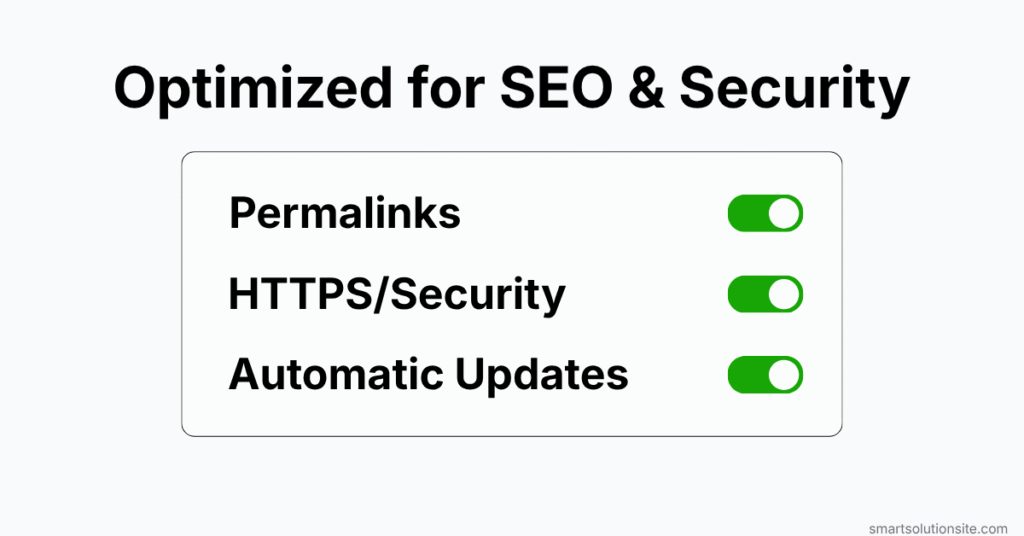
Go to Settings > Permalinks. This is the most important SEO step in this comprehensive WordPress setup guide.
- Select “Post Name.” * This turns
yoursite.com/2026/04/13/sample-post/into a much cleaneryoursite.com/sample-post/. - Recommended for beginners, this structure is the industry standard for technical SEO.
Step 3: Delete “Ghost” Content
WordPress installs a sample post (“Hello World”) and a sample page. Navigate to the Posts and Pages sections and move these to the trash. Don’t forget to empty the trash afterward to keep your database clean.
Step 4: Choose a Performance-First Theme
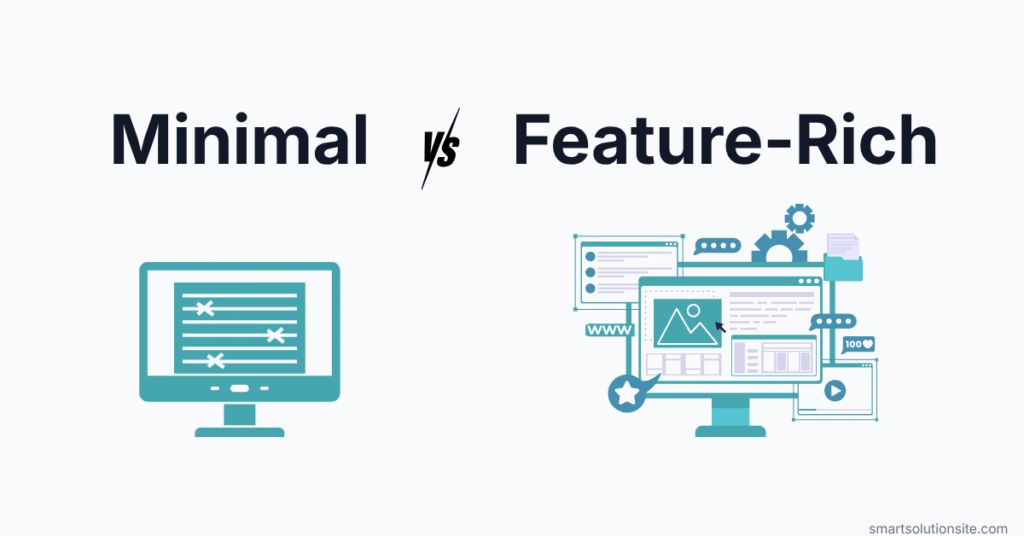
Design is tempting, but speed is king. Used by many website owners, themes like GeneratePress or Astra offer the best balance of customization and speed.
- Go to Appearance > Themes > Add New.
- Search for a lightweight theme.
- Avoid “Multi-purpose” themes that come with 50 pre-installed plugins; these will slow down your “Website Speed & Performance.”
Step 5: Essential Plugin Installation
Don’t overdo it. Start with these four categories:
- SEO: Rank Math or Yoast SEO.
- Security: Wordfence or Patchstack.
- Caching: LiteSpeed Cache or WP Rocket.
- Backups: UpdraftPlus.
Step 6: Discussion and Privacy Settings
Go to Settings > Discussion. Uncheck “Allow link notifications from other blogs (pingbacks and trackbacks)” to reduce spam. Under Settings > Privacy, select your Privacy Policy page. This is mandatory for “SEO & Indexing” and building trust with modern search engines.
Q1: How many plugins are too many?
It’s not about the number, but the quality. Ten well-coded plugins are better than two poorly coded ones. However, for a new site, try to stay under 12-15 plugins to keep things simple.
Q2: Do I need a paid theme?
Not necessarily. The free versions of Astra and GeneratePress are excellent. You only need the Pro versions if you want advanced hooks or specific layout features without writing code.
Q3: Should I use a “Coming Soon” page?
Yes. While you follow this comprehensive WordPress setup guide, a “Coming Soon” page prevents visitors from seeing a broken or half-finished site, which protects your brand’s reputation.
Q4: How do I secure my login page?
Beyond using a strong password, you can use plugins like WPS Hide Login to change your login URL from /wp-admin to something private like /mysite-entry.
Conclusion
Setting up your website correctly is the most important investment of time you will make. By following this comprehensive WordPress setup guide, you have transformed a basic installation into a high-performance machine ready for SEO & Indexing success.
Remember, a website is a living project. Now that your foundation is solid, you can focus on creating high-quality content and exploring “Make Money Online” strategies. Stay consistent, keep your plugins updated, and always prioritize the user experience.
If you found this guide helpful, explore our Troubleshooting category for fixes to common WordPress hurdles!